UNSTEM.ME BLOG
How to Edit Stems in Ableton Live
Once you have a song split into stems — vocals, drums, bass and the rest — Ableton Live lets you remix, rearrange and clean them up. The trick is getting every stem locked to the same grid so nothing drifts. Here's the full workflow, step by step.
Get stems from a link firstBefore you start: get your stems
You need the separated tracks first. If you're working from your own session you already have them; if you're starting from a finished song, you can split it for free: paste a YouTube, SoundCloud or Instagram link into unstem.me and download the vocals, drums, bass and other stems as MP3s (or grab them all as a ZIP). Keep the four files in one folder so they're easy to drag in together.
Step by step
- Set the project tempo. Set Live's tempo to the song's BPM. In Preferences → Record / Warp / Launch, turn off Auto-Warp Long Samples — this stops Live from guessing a tempo and shifting your stems out of place on import.
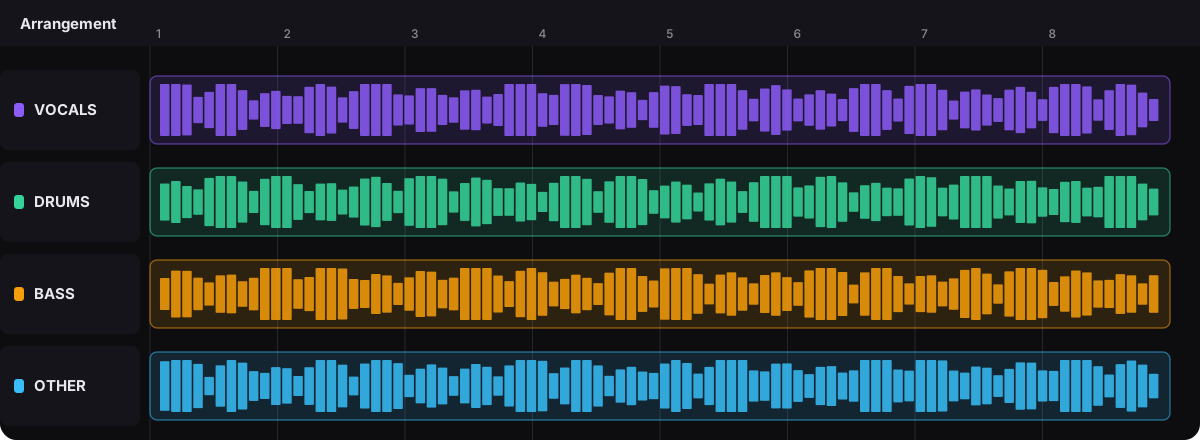
- Import one stem per track. Drag the stems from the Browser or Finder/Explorer into the Arrangement View. Select all of them and hold
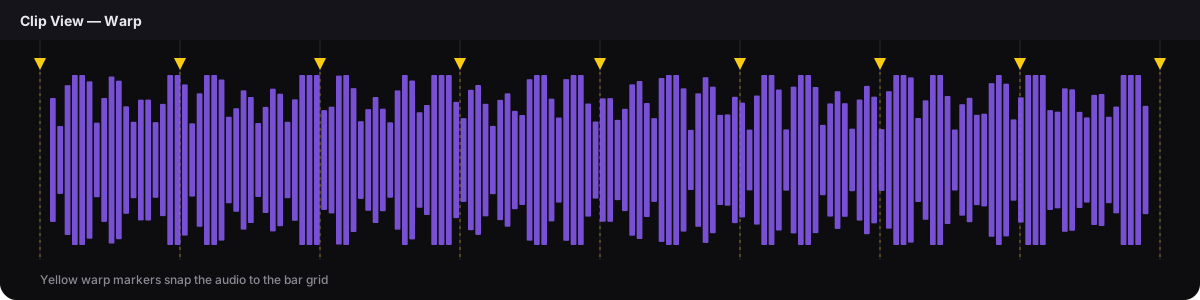
CMD/CTRLwhile dropping so each lands on its own track, all lined up at bar 1. - Warp to the grid. Double-click a clip to open Clip View, enable Warp, and use the yellow warp markers to lock the audio to Live's bar grid. If your stems are all the same length, select them together and warp in one pass.
- Pick the right warp mode. Use Beats for drums and percussion, and Complex / Complex Pro for vocals, bass and full-range parts.
- Quantize and arrange. Right-click a warped clip and choose Quantize to snap markers to the grid. Then cut, loop, fade and group the stems to build your edit.
Warp modes, quick reference
- Beats — drums, percussion and anything with sharp transients. Snappy, keeps hits tight.
- Complex — good all-rounder for vocals and melodic stems.
- Complex Pro — the best quality for vocals and full mixes; heavier on CPU, so use it where it counts.
- Tones — clean monophonic material like a bass line or a lead.
Tips for clean edits
- Trust Auto-Warp first. If a stem already sounds in time after import, don't fight the warp markers — move on.
- Set a tempo leader. In Clip View's Audio Utilities, toggle a clip to Lead so the Set follows the original groove instead of a rigid grid.
- Group and colour. Group the four stems and colour them to keep long arrangements readable.
- Watch for artifacts. AI stems can have faint bleed — a touch of EQ or a gate on the vocal cleans it up.
FAQ
Where do I get stems to edit in Ableton?
If you don't already have multitracks, paste a YouTube, SoundCloud or Instagram link into unstem.me and download vocals, drums, bass and other as MP3s, then import them into Ableton.
Why are my stems out of time after importing?
Live auto-warped them to a guessed tempo. Turn off Auto-Warp Long Samples before importing, set the project tempo to the song's BPM, and warp manually if needed.
Which warp mode should I use for stems?
Beats for drums and percussion; Complex or Complex Pro for vocals, bass and full mixes. Complex Pro sounds best but uses more CPU.
Do all stems need to be the same length?
It helps. If every stem is the same length and starts at the same point, you can select them all and warp them together in one pass.