UNSTEM.ME BLOG
How to Prepare Stems for a Remix in Ableton Live
Splitting a song into vocals, drums, bass and other is only the first step. Before you start chopping hooks or building a new drop, spend ten minutes turning those files into a clean Ableton Live session. The remix goes faster because the stems are aligned, gain-staged, grouped and easy to export.
Split a song into stems firstWhy prep matters
AI-separated stems are useful, but they are not the original studio multitracks. The vocal might include reverb from the full mix, the drum stem might carry a little bass, and the “other” stem can be busy. A quick setup pass keeps those issues from spreading through the whole remix.
This workflow assumes you already have four files: vocals, drums, bass and other. If you do not, paste a YouTube, SoundCloud or Instagram link into unstem.me and download the stems first.
Setup checklist
- Save a new Set first. Create a dedicated project folder before importing audio. Once the stems are in, use Live's file management tools to keep the samples with the Set.
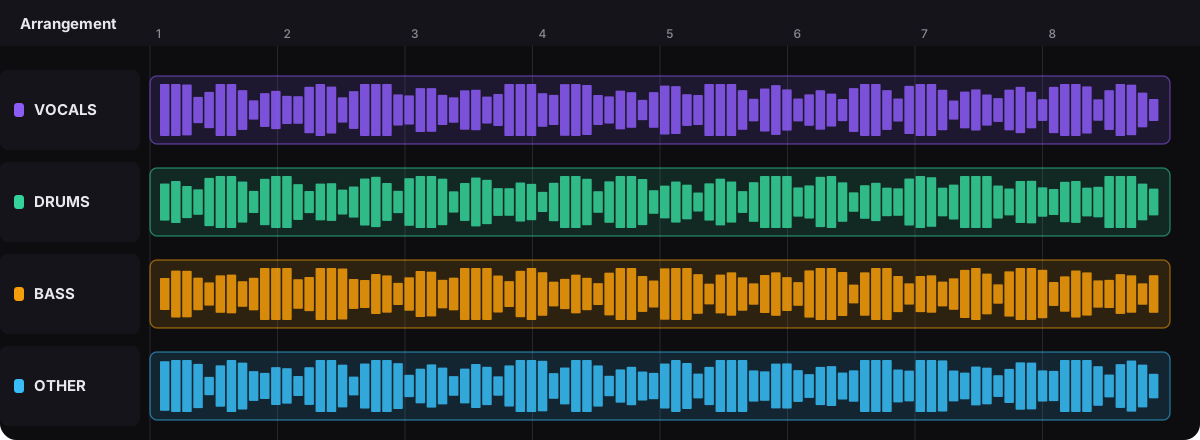
- Line up the stems at bar 1. Put vocals, drums, bass and other on separate audio tracks. Their starts should match exactly; if one file is nudged late, every edit after that becomes harder to trust.
- Set clip gain before plugins. Pull down the loudest stems until the full group leaves headroom. Do this with clip gain or Utility before EQ, compression or saturation.
- Use minimal warping. If the remix will stay close to the original tempo, do not over-warp. For tempo changes, lock the downbeats and choose a mode that fits the source: Beats for drums, Complex or Complex Pro for full-range material.
- Group and color the tracks. Put the four stems in one group, color each track, and add locators for intro, verse, chorus, bridge, break and outro.
- Save a cleaned version. Keep one Set called something like
song-stems-clean.als. Then duplicate it for the actual remix so you can always return to the prepared source.
Clean each stem without killing it
- Vocals — high-pass low rumble, fade breaths only when they distract, and automate volume instead of hard-gating every phrase. Leave natural reverb tails when they help the vocal sit.
- Drums — tighten obvious empty gaps with short fades. If cymbal bleed is harsh, trim a little top end before reaching for heavy transient processing.
- Bass — keep the low end controlled and centered. If the bass stem has kick spill, carve space with EQ instead of muting every kick hit.
- Other — this is usually guitars, keys, pads and background details. Use it as texture, then cut holes around the new lead, drums or bass you add in your remix.
Remix moves that work well in Live
Once the session is clean, start with fast arrangement experiments. Duplicate the chorus vocal into a new track and chop it into one-bar phrases. Loop the cleanest drum break and layer a new kick under it. Mute the original bass for eight bars and write a new line. Then bring the “other” stem back in as a filtered texture for transitions.
Keep the original stems grouped while you write. That lets you mute the source material quickly and check whether the remix still works without leaning too hard on the old mix.
Export options
- Reference bounce — export the full arrangement when you want to check the idea in the car, on headphones or in a DJ set.
- Cleaned stems — export vocals, drums, bass and other from the same start point if you want to produce in a fresh Set.
- Remix pack — export the cleaned stems plus any new drums, synths, basses and FX as separate tracks for mixing later.
FAQ
Should I normalize every stem before remixing?
Usually no. Normalize can make bleed and artifacts louder. Lower clip gain or add Utility so the full stem group has headroom, then adjust by ear.
Do I need to warp every stem?
Only warp what needs tempo changes or timing repair. If the stems are already aligned and in time, keep the warping minimal.
Why does the vocal stem still have drums or reverb in it?
AI stem separation is not the same as the original studio multitracks. Some bleed, reverb tails and cymbal noise can remain, especially in dense mixes.
What should I export after cleaning stems?
Export a rough master for reference and, if you want to keep producing in a new Set, export the cleaned stems from the same start point.